
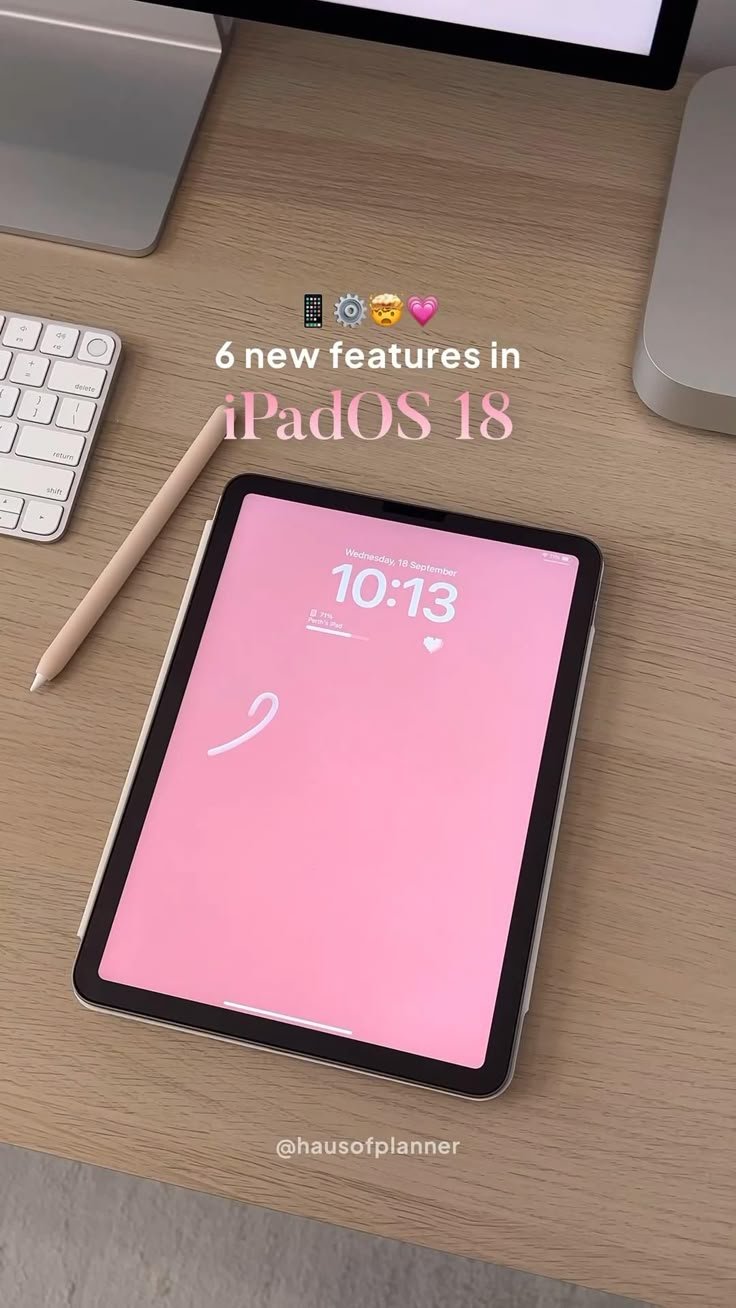
The Unseen Powerhouse: Unlocking Multitasking Mastery on the iPad Air 4
The Apple iPad Air 4, launched in late 2020, occupies a unique and enduring position in Apple’s tablet lineup. While newer models boast M-series chips and features like Stage Manager, the Air 4, powered by the formidable A14 Bionic chip, remains a profoundly capable device, especially when it comes to productivity and multitasking. Far from being a mere content consumption device, the iPad Air 4, with the continuous evolution of iPadOS, transforms into a versatile workstation, capable of juggling multiple applications and workflows with remarkable fluidity.
This comprehensive article will delve deep into the multifaceted multitasking features of the iPad Air 4, exploring how its hardware and the intelligent design of iPadOS converge to offer an experience that bridges the gap between traditional tablets and more conventional computing devices. We will dissect each core feature, provide practical use cases, and offer insights into optimizing your workflow to truly harness the Air 4’s hidden potential.
The Foundation: A14 Bionic and iPadOS Synergy
At the heart of the iPad Air 4’s enduring multitasking prowess lies the A14 Bionic chip. This silicon marvel, the same chip found in the iPhone 12 series, brought a significant leap in performance and efficiency to the Air line. With its 6-core CPU and 4-core GPU, coupled with a 16-core Neural Engine, the A14 Bionic provides ample horsepower to run multiple demanding applications simultaneously without a hint of lag. This raw power ensures that app switching is instantaneous, animations are buttery smooth, and complex operations within apps are handled with ease, even when they are running concurrently.
Beyond the chip, the iPad Air 4’s Liquid Retina display, with its vibrant colors and high resolution, offers generous screen real estate (10.9 inches) for comfortable split-screen work. Its compatibility with the second-generation Apple Pencil and the Magic Keyboard or Smart Keyboard Folio further elevates its productivity credentials, turning it from a touch-first device into a versatile input powerhouse.
However, it is iPadOS that truly unlocks the Air 4’s multitasking capabilities. From its inception, iPadOS was designed to take the iPad beyond its iOS roots, introducing features that facilitate more complex workflows. It recognizes the iPad’s unique blend of touch-first interaction, portability, and powerful hardware, crafting a user experience that is both intuitive and deeply functional.
Core Multitasking Features Explained
The iPad Air 4 leverages several key iPadOS features to enable its robust multitasking. Understanding each one and how they interact is crucial for maximizing your productivity.
1. Slide Over: The Quick Access Companion
What it is: Slide Over allows you to open a second app in a floating, smaller window that hovers over your main full-screen app. It’s designed for quick access to an app you need frequently but not necessarily side-by-side with your primary task. Think of it as a dynamic, always-on utility panel.
How to Use It:
- From the Dock: While in an app, gently swipe up from the bottom of the screen to reveal the Dock. Drag an app icon from the Dock upwards onto the main app’s screen. It will appear as a narrow, floating window.
- From the App Switcher: If you have an app open in the App Switcher (swipe up and hold from the bottom), you can drag it onto another app’s card to initiate a Slide Over.
Controlling Slide Over:
- Move It: Drag the gray bar at the top of the Slide Over window to reposition it to either the left or right side of the screen.
- Hide It: Swipe the gray bar to the right edge of the screen to temporarily hide the Slide Over app. Swipe from the right edge inward to bring it back.
- Cycle Through Apps: If you have multiple apps in Slide Over, swipe left or right on the gray bar to cycle between them.
- Convert to Split View: Drag the gray bar to the top of the screen and then downward to transition it into a Split View.
Practical Use Cases:
- Quick Reference: Keeping a calculator, notes app, or dictionary open while working in a document.
- Communication: Responding to messages (iMessage, Slack, WhatsApp) without leaving your primary app.
- Social Media: Briefly checking Twitter or Instagram while browsing the web.
- Timer/Stopwatch: Managing time during a task.
- Music/Podcast Controls: Quickly adjusting playback without interrupting your main workflow.
Slide Over excels when you need an app to be readily available for intermittent use, acting as a convenient overlay that doesn’t demand significant screen real estate.
2. Split View: The Dual-Pane Workstation
What it is: Split View allows you to open two applications side-by-side, each occupying a customizable portion of the screen. This is true multi-app interaction, where both apps are fully active and interactive simultaneously. It’s the closest the iPad Air 4 gets to a traditional desktop multi-window experience.
How to Use It:
- From the Dock: While in an app, swipe up to reveal the Dock. Drag an app icon from the Dock to the left or right edge of the screen. The main app will shrink, and the dragged app will snap into place alongside it.
- From the App Switcher: Open the App Switcher (swipe up and hold). Drag one app card onto another app card. You’ll see a preview of how they will arrange in Split View.
- From the Multitasking Menu (iPadOS 15+): Tap the three dots at the top center of an open app. Select the Split View icon (the rectangle with two halves). The current app will move to one side, and you’ll be prompted to select a second app from your Home Screen or App Library.
Controlling Split View:
- Resize: Drag the vertical divider bar between the two apps to adjust their relative sizes. iPadOS offers 50/50, 70/30, and 30/70 splits, adapting to the apps’ optimal layouts.
- Swap Apps: Drag the three dots at the top of one app to the opposite side of the screen to swap its position with the other app.
- Replace an App: Drag an app from the Dock or Home Screen onto one of the apps in Split View to replace it.
- Exit Split View: Drag the divider bar all the way to one side to close one app and make the other full screen. Alternatively, tap the three dots at the top of an app and select the Full Screen icon.
Practical Use Cases:
- Research & Writing: Having a Safari window open for research on one side and Pages or Notes on the other for writing.
- Note-Taking during Lectures/Meetings: Viewing presentation slides or a video on one side while taking notes with Apple Pencil or keyboard on the other.
- Content Creation: Browsing stock photos in Files or Photos on one side and dragging them into a design app like Procreate or Affinity Photo on the other.
- Data Entry: Viewing a spreadsheet on one side and entering data into a form or another document on the other.
- Language Learning: A dictionary/translator app alongside a reading app.
- Comparing Documents: Viewing two PDFs or Word documents side-by-side for comparison or editing.
Split View transforms the iPad Air 4 into a formidable productivity tool, allowing for sustained focus on two related tasks simultaneously, significantly reducing the need to constantly switch between full-screen applications.
3. Picture-in-Picture (PiP): Always-on Visuals
What it is: Picture-in-Picture allows video playback to continue in a small, resizable, and movable window while you navigate other apps or return to the Home Screen. It’s like having a miniature TV screen that floats over everything else.
How to Use It:
- Automatic: For supported apps (like Safari, Apple TV, Netflix, YouTube – often requires Premium or specific browser tricks for YouTube), simply exit the video playback (e.g., swipe up to go home) while the video is playing full screen. The video will automatically shrink into a PiP window.
- Manual (within app): Many video apps have a dedicated PiP button (often a square with an arrow pointing out of it) within their player controls.
Controlling PiP:
- Move It: Drag the PiP window to any of the four corners of the screen.
- Resize It: Pinch in or out on the PiP window to make it larger or smaller.
- Hide It: Swipe the PiP window off to the side of the screen. A small tab will remain visible, allowing you to swipe it back into view.
- Return to Full Screen: Tap the PiP window and then tap the icon with the arrow pointing inward (or the PiP button again).
Practical Use Cases:
- Learning/Tutorials: Watching a coding tutorial or a cooking demonstration while following along in a development environment or recipe app.
- Video Calls: Keeping a FaceTime call active while looking up information or sharing content in another app.
- Background Entertainment: Watching a movie or TV show while browsing social media, checking email, or light work.
- Monitoring Live Events: Keeping an eye on a sports game or news broadcast while doing other tasks.
PiP is a subtle yet powerful multitasking feature, allowing you to consume visual content without sacrificing your ability to interact with other applications.
4. The Dock and App Switcher: Navigational Hubs
While not multitasking features in themselves, the Dock and App Switcher are indispensable for fluid multitasking on the iPad Air 4.
-
The Dock: This persistent bar at the bottom of the screen provides instant access to your most frequently used apps. Its dynamic nature means it also shows recently used apps on the right side. For multitasking, the Dock is your primary gateway to initiating Slide Over and Split View, as you can simply drag apps from it onto your active workspace. Keeping your Dock organized with your go-to productivity apps is a key optimization.
-
The App Switcher: Accessed by swiping up from the bottom of the screen and holding, the App Switcher displays cards of all your currently open applications. This visual overview allows you to quickly jump between apps, or drag app cards together to create Split View or Slide Over arrangements. It’s also where you can quickly close apps by swiping their cards upwards. The A14 Bionic chip ensures that navigating this interface is incredibly fast, even with many apps in memory.
5. Drag and Drop: Seamless Content Transfer
What it is: Drag and Drop allows you to move content (text, images, files, links, etc.) between apps, or even within the same app, with a simple touch gesture. It’s a fundamental multitasking enabler, eliminating the need for cumbersome copy-pasting for many types of data.
How to Use It:
- Select Content: Long-press on the item you want to drag (e.g., an image, a block of text, a file icon).
- Lift and Drag: Once the item "lifts" under your finger, you can start dragging it.
- Navigate to Destination: While still holding the dragged item, use your other hand (or a second finger if using one hand) to navigate to the target app. You can do this by swiping up for the Dock or App Switcher, or by opening another app in Split View/Slide Over.
- Drop Content: Once you’re in the desired app and see a visual indicator (like a blinking cursor for text, or a highlighted area for an image), release your finger to drop the content.
Practical Use Cases:
- Content Curation: Dragging images from Safari or Photos into a mood board app (e.g., Freeform, Concepts) or a presentation.
- Research & Notes: Dragging snippets of text or links from Safari directly into a note-taking app (e.g., GoodNotes, Notability, Apple Notes).
- File Management: Moving files between folders within the Files app, or dragging files from Files into email attachments or cloud storage apps.
- Emailing: Dragging photos or documents directly from Photos or Files into an email draft.
- Web Design/Blogging: Dragging images and text from various sources into a web editor or content management system.
Drag and Drop elevates the iPad Air 4’s multitasking by making the transfer of information between applications intuitive and efficient, mimicking a desktop experience without the need for a mouse or trackpad.
Enhancing Multitasking with Accessories and Advanced Features
The iPad Air 4’s multitasking capabilities are further amplified by its compatibility with key accessories and deeper iPadOS features.
6. Apple Pencil 2 & Scribble/Quick Note
While not directly a multitasking feature, the Apple Pencil 2 profoundly enhances multitasking by integrating natural input.
- Scribble: This feature allows you to write in any text field across iPadOS, and your handwriting is automatically converted to typed text. This means you can be in Split View, researching on one side, and rapidly jotting down notes or filling out a form on the other, using the Pencil directly in the text field. It’s faster than typing for many, and seamless.
- Quick Note: Introduced in iPadOS 15, Quick Note allows you to instantly pull up a small note-taking window from anywhere in iPadOS by swiping up from the bottom-right corner with your Apple Pencil (or finger). This is a phenomenal multitasking tool for jotting down fleeting thoughts, links, or phone numbers without disrupting your main workflow. The note automatically saves and links to the app or website you were using when you created it.
7. Keyboard and Trackpad Support (Magic Keyboard / Smart Keyboard Folio)
Attaching a Magic Keyboard or Smart Keyboard Folio transforms the iPad Air 4 into an even more potent productivity machine.
- Keyboard Shortcuts: Many familiar macOS keyboard shortcuts work on iPadOS (e.g., Command + Tab for app switching, Command + Space for Spotlight search, Command + C/V for copy/paste). These shortcuts drastically speed up navigation and interaction between apps.
- Trackpad Gestures: The integrated trackpad on the Magic Keyboard offers multi-touch gestures that mirror many touch gestures (e.g., two-finger swipe to scroll, three-finger pinch to go home, three-finger swipe left/right to switch between full-screen apps). The precision cursor allows for quicker selection of text and interaction with smaller UI elements, making Split View and Drag and Drop even more efficient. Using the trackpad allows for sustained focus on the screen without constantly reaching up to touch it.
8. Files App: The Central Command Center
The Files app is crucial for any serious multitasking workflow involving documents. It integrates with iCloud Drive, third-party cloud services (Dropbox, Google Drive, OneDrive), and local storage. When working in Split View or using Drag and Drop, the Files app becomes the central hub for accessing, organizing, and moving your digital assets, making it easier to pull documents into editing apps or save finished work.
9. Safari Tab Groups
While internal to Safari, Tab Groups (introduced in iPadOS 15) can be seen as a form of "multitasking" within your browser. You can save collections of tabs related to a specific project or topic. This allows you to quickly switch between different sets of research or work without having dozens of individual tabs cluttering your browser window, thus improving focus.
Practical Multitasking Workflows on iPad Air 4
Let’s illustrate how these features come together in real-world scenarios:
Scenario 1: The Student’s Research & Essay Workflow
A student needs to research a topic and write an essay.
- Split View: Opens Safari on one side for research and Pages (or Word) on the other for writing.
- Drag and Drop: As they find relevant text snippets or images in Safari, they can long-press and drag them directly into their essay in Pages.
- Quick Note/Apple Pencil: If a sudden thought or idea strikes, they can swipe up from the corner with their Apple Pencil to open a Quick Note, jotting down the idea without leaving their Split View setup. This note might contain a link from Safari that’s automatically embedded.
- Slide Over: They might keep a dictionary app or a citation manager in Slide Over for quick lookups or reference generation without disrupting the main Split View.
- Files App: If they need to reference a PDF textbook, they can open the Files app in a new Split View (temporarily replacing Pages), find the PDF, and then drag it into Pages or use it for reference before returning to their writing.
- Keyboard Shortcuts: Using Command + Tab to quickly switch between other apps (like a communication app for group projects) or Command + F for finding text within their research.
Scenario 2: The Creative Professional’s Mood Board & Design Workflow
A graphic designer is creating a mood board and starting a new project.
- Split View: Opens Photos or Safari on one side to browse for inspiration and a design app (like Procreate or Affinity Photo) on the other.
- Drag and Drop: They can drag images directly from Photos or Safari into their design canvas in Procreate.
- Slide Over: A chat app (e.g., Slack) or email client is kept in Slide Over for quick client communication.
- Files App: If they have design assets (fonts, textures) stored in the Files app, they can open Files in a temporary Split View to drag them into their design app.
- Apple Pencil: The Apple Pencil is constantly used for precision drawing and editing within the design app, while also being ready for a Quick Note to jot down a design idea.
- PiP: They might have a tutorial video playing in PiP mode while they work on their design, learning new techniques on the fly.
Scenario 3: The Business User’s Meeting & Document Workflow
A business professional is preparing for and attending an online meeting.
- Split View: Has their calendar app open on one side to view the agenda and a notes app (e.g., Apple Notes, OneNote) on the other for meeting minutes.
- PiP: During the meeting, they join the video call (e.g., Zoom, Google Meet). The call then automatically goes into PiP, allowing them to continue taking notes or referencing documents in Split View.
- Files App: They might open the Files app in a temporary Split View to quickly locate and open a presentation or report that needs to be referenced during the call, or to share it.
- Slide Over: Their email client is in Slide Over for urgent messages that come in during the meeting.
- Keyboard & Trackpad: Using the Magic Keyboard for efficient note-taking and the trackpad for precise cursor control during the video call (e.g., muting/unmuting, raising hand).
Limitations and What the iPad Air 4 Doesn’t Do (Yet)
It’s important to acknowledge that while the iPad Air 4 is a powerful multitasking device, it does not possess every advanced feature found in the M-series iPads (iPad Pro M1/M2, iPad Air M1/M2).
- No Stage Manager: The most significant difference is the absence of Stage Manager, a feature introduced in iPadOS 16 for M-series iPads. Stage Manager offers a more desktop-like windowing system, allowing multiple overlapping, resizable app windows and external display support with extended desktop. The A14 Bionic chip, while powerful, does not meet the hardware requirements (particularly RAM and display controller capabilities) that Apple deemed necessary for Stage Manager’s demanding performance. This means iPad Air 4 users are limited to the Split View, Slide Over, and PiP paradigms. While highly functional, these are not as flexible as Stage Manager for certain power users.
- External Display Mirroring Only: Unlike M-series iPads with Stage Manager, the iPad Air 4 only supports external display mirroring. This means whatever is on your iPad screen is simply replicated on the external monitor, rather than offering an extended desktop experience with separate workspaces.
- RAM Management: While the A14 Bionic is capable, the iPad Air 4 typically has 4GB of RAM (compared to 8GB or more in Pro models). For extremely heavy multitasking with many demanding apps open, you might occasionally experience an app reloading in the background, though this is rare for most typical workflows.
These limitations, however, do not diminish the Air 4’s existing multitasking capabilities. For the vast majority of users, its current feature set is more than sufficient and highly efficient.
Optimizing Your Multitasking Experience on iPad Air 4
To truly get the most out of your iPad Air 4’s multitasking features, consider these tips:
- Master the Gestures: Spend time practicing the swipe gestures for Slide Over, Split View, and the App Switcher. They are intuitive but require muscle memory.
- Organize Your Dock: Place your most frequently used apps for multitasking (e.g., Safari, Notes, Mail, Files, Pages) in the static part of your Dock for quick access.
- Learn Keyboard Shortcuts: If you use a physical keyboard, familiarize yourself with iPadOS keyboard shortcuts. Command + Tab for quick app switching is a game-changer.
- Utilize Spotlight Search: Command + Space (with a keyboard) or swiping down on the Home Screen brings up Spotlight, which can instantly launch apps or search for content across your device, accelerating your workflow.
- Customize Control Center: Add shortcuts to Control Center for features you frequently access, like screen recording, focus modes, or specific app shortcuts, allowing you to trigger them quickly without leaving your current app.
- Regularly Update iPadOS: Apple consistently refines and improves multitasking features with each iPadOS update. Ensure your Air 4 is running the latest version to benefit from these enhancements.
- Practice and Experiment: The best way to find your ideal multitasking workflow is to experiment. Try different app combinations in Split View, utilize Slide Over for various quick tasks, and integrate Drag and Drop into your daily routine.
Conclusion: The Enduring Value of the iPad Air 4
The iPad Air 4, despite being a few generations old, stands as a testament to Apple’s commitment to creating versatile and powerful tablets. Its A14 Bionic chip, coupled with the sophisticated multitasking features of iPadOS – Slide Over, Split View, Picture-in-Picture, Drag and Drop, and the seamless integration with accessories like the Apple Pencil and Magic Keyboard – collectively transform it into a highly capable productivity device.
While it may not boast the cutting-edge windowing of Stage Manager found in its M-series brethren, the iPad Air 4 offers a mature, intuitive, and remarkably fluid multitasking experience that meets the demands of students, creative professionals, business users, and casual consumers alike. It proves that raw power alone isn’t enough; it’s the intelligent synergy between hardware and software that truly unlocks a device’s potential. For anyone seeking a powerful, portable, and enduringly capable tablet that excels at managing multiple tasks, the iPad Air 4 remains an excellent and highly recommended choice, a true unseen powerhouse in the realm of mobile computing.
